
File Tab |
|


The File tab has five Groups:
 Open
Open
Save As
Chronologies
Licensing
Options

Where is my chronology saved?
Chronolator Define can save and access your chronology in two places:
|

Open
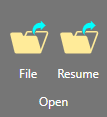
Use the File button to open a file in your computer's file system.
.png) If you cannot find the chronology using the File button, see this FAQ.
If you cannot find the chronology using the File button, see this FAQ.
Use the Resume button to open the version in browser storage and continue working where you left off last time you used the tool.
If the Resume button does not find your chronology, see this FAQ.
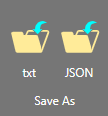
Chronolator Define can save your chronology as one of two file types:
a txt file file that can only be made sense of by a Chronolator Browser Tool.
a JSON file that can be used to exchange data with other programs.
Your administrator might tell you which type to use. If not, you can use either one, unless you want to protect the chronology with a password. In that case, you must use the txt format.
Depending on your browser settings, your work might automatically be saved in your usual Downloads folder. If you want to be prompted to save it in a particular place, search for instructions relevant to your browser, using a search such as get browser to prompt for download location.
.png) If you want a copy of the chronology that can be read by a word processor like Microsoft Word or Google Docs, you can use the Export > docx button between the Ribbon and the table. See Chronolator and docx files.
If you want a copy of the chronology that can be read by a word processor like Microsoft Word or Google Docs, you can use the Export > docx button between the Ribbon and the table. See Chronolator and docx files.
Chronologies
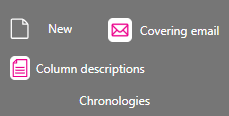
Use the buttons in the Chronologies group to:
Create a new chronology.
Create sample test for a covering email.
Create a table describing the columns in a chronology.
Licensing
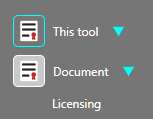
Use the buttons in the Licensing group to:
Examine, purchase, or install a licence for Chronolator Define.
Create or install a licence for a Chronolator Document.
Options
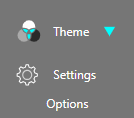
The Options group has a Theme button that lets you change how the Ribbon looks. When you click on it, two options are shown. Hovering on one displays its effect on the Ribbon. Click on the one you want to select it.
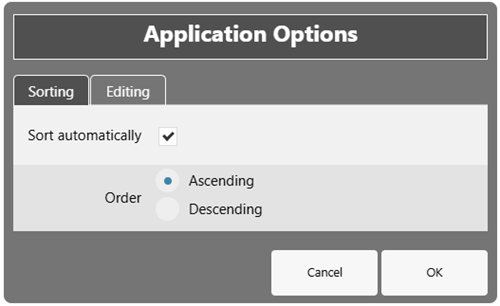
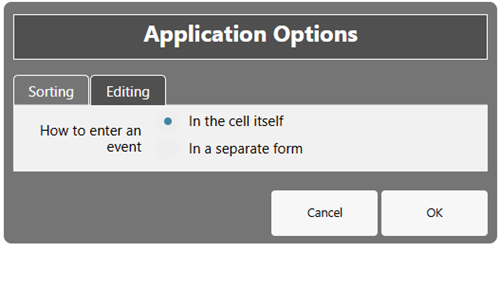
The Settings button lets you set the following options, which will apply to the current and subsequent sessions.
|
|
|
|
Sorting |
Editing |
Copyright © Berrick Computing Ltd 2026