
Chronolator and docx files |
|


Chronolator Enter can read chronologies in docx files produced by Microsoft Word, Google Docs, LibreOffice Writer and other programs.
It can also export your chronology to a docx file.
Opening a chronology table in a docx file
There is not a dedicated button to do this: just use File > Open > File as usual.
Some things to note
What tables are processed?
Only the first table in the document is processed.
Column Information
|
Chronolator Enter needs to know what each column in the table contains - a date, a time, a source of information and so on. If no column information can be found, message c9m3020 is shown: |
|
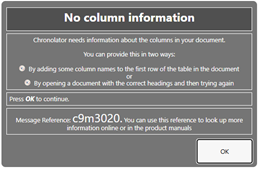
When this happens, you can give Chronolator Enter this information in one of two ways:
 Open a chronology that has the right columns and then open the docx file.
Add a Specifications Row to the top of the docx table and then open it.
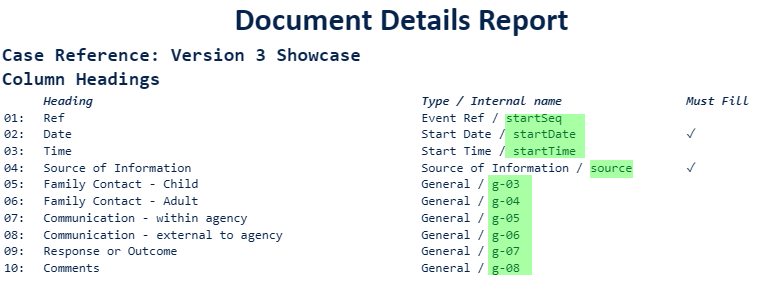
The Specifications Row uses Chronolator's internal column names, which are:
startSeq
startDate
startTime
endDate
endTime
source
glossary
g-01 through g-13
Here is an example .docx table to which a Specifications Row has been added.
|
startDate |
startTime |
endDate |
endTime |
source |
glossary |
g-01 |
g-02 |
g-03 |
|
Date started |
Time started |
Date ended |
Time ended |
Source of Information |
Initials |
What happened |
Response or outcome |
Comments |
|
22may52 |
|
|
|
Clinic notes |
|
Child was born |
|
|
If a chronology is already open, you will be able to find the names it includes in the Document Details report for the open document (Tools > System Tools > Reports):
Licensing
docx files contain no information about your licence. This is of no consequence if you are opening small chronologies, but becomes significant when you open one with more than 50 events.
In that case, although all the events are added to the chronology, when you come to Save or Resume only the first 50 events will be kept.
To avoid this problem, open a licensed chronology before opening the docx. It need not have matching headings.
Exporting a chronology table to a docx file
|
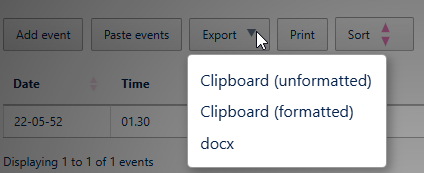
Use the Export > docx button between the Ribbon and the table.
|
|
.png)
Copyright © Berrick Computing Ltd 2026