
Copying to another program |
|


Copying to the Clipboard
Click on the Export button above the table and choose one of the Clipboard options.
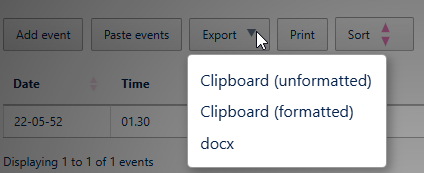
 the Clipboard (unformatted) button copies the selected event, or the entire chronology if no event is selected. Columns in the resulting clipboard item are separated by tabs, and might need to be converted to a table in the receiving application. Any line breaks in the table will be converted to the ` character.
the Clipboard (formatted) button copies the selected event, or the entire chronology if no event is selected. The resulting clipboard item will be pasted as a table in the receiving application, and line breaks are automatically converted. Any colours applied to the table will be preserved (unless you are using Firefox).
Pasting into the other program
.png) In most applications, you can paste the clipboard by pressing Ctrl+V (Apple ⌘+V). In Microsoft Office applications, you can also use the Paste button on the Home tab.
In most applications, you can paste the clipboard by pressing Ctrl+V (Apple ⌘+V). In Microsoft Office applications, you can also use the Paste button on the Home tab.
You can paste the clipboard into another application such as Microsoft Word or Excel (or, indeed, any other).
The following instructions assume you are pasting into a new, blank Microsoft Office document.
After pasting
Excel
Excel should automatically split the data into columns when you paste it into a blank spreadsheet.
Word
If you have used the Copy (formatted) button, Word will produce a table when you paste it as long as you press the Keep source formatting option on the small Paste Options menu: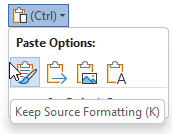
(for more information, see this Microsoft article).
If you accidentally paste as plain text, or have used the Clipboard (unformatted) button, you will need to convert it to a table like this:
Select All (Ctrl+A (Apple ⌘+A)
Convert the selection to a table using the Insert tab, choosing Table > Convert text to table and using all the defaults
Line breaks: Word and Excel
If you used the Clipboard (unformatted) button, or pasted as plain text, any line breaks in the table will have been transformed into the ` character.
Do the following to change them back into line breaks:
Select All (Ctrl+A (Apple ⌘+A))
Open the Replace dialog (Ctrl+H (Apple ⌘+H)
Type ` in the Find What box. You should find the ` character at the top left of your keyboard
(In Word): Type ^p in the Replace with box. You should find the ^ character with Shift+6
(In Excel): Type Ctrl+Shift+J in the Replace with box
Press Replace All
Copyright © Berrick Computing Ltd 2026