
Copying from another program |
|


 Text can be pasted into individual cells of an event when you are adding or updating an event.
Multiple entire events can be pasted from a table into the chronology in one go.
Pasting into individual cells
Press the  button next to the event to open it for editing.
Press the mouse where you want to insert the clipboard contents.
Press Ctrl+V (Apple ⌘+V).
Pasting multiple events
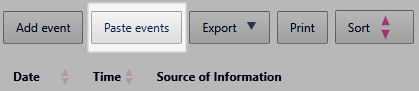
Use the Paste events button above the table.
Here are some things to bear in mind:
The first time you use the button, your browser might ask you to confirm that you want to use the clipboard for security reasons. See Browser Security below.
The source rows must contain the same number of columns as the target chronology.
You must change any line break characters in your source to to ` or ¦. Chronolator Enter will change them back to line break characters when you press Paste events.
You must change any tab characters in your source to to spaces.
.png) Why? Because when copying tables into the clipboard (whether from Office documents or Web pages for example), your computer uses line breaks to separate rows, and tabs to separate cells. If your source cells themselves contain line breaks or tabs, the paste will not work as you expect.
Why? Because when copying tables into the clipboard (whether from Office documents or Web pages for example), your computer uses line breaks to separate rows, and tabs to separate cells. If your source cells themselves contain line breaks or tabs, the paste will not work as you expect.
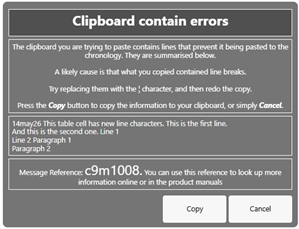
If Chronolator Enter detects any errors it will issue message c9m1008.
|
As an example, suppose you copy a row like this to your clipboard, and then use the Paste events button . . .
. . . some information about the problem lines is included in the message. Sadly, because they have already been 'garbled' by the time you press Paste events, that information is not an exact copy; but it should be enough to help you identify them |
|

How to change Line breaks in Word
Select the whole table.
Open the Replace dialog (Ctrl+H or Apple ⌘+H).
Type ^p in the Find what box.
Type ` or ¦ in the Replace with box.
Press Replace All.
Type ^l in the Find what box.
Type ` or ¦ in the Replace with box.
Press Replace All.
You should find the ^ character with Shift+6.
` and ¦ are usually on a single key near the top left of your keyboard. Press it on its own for `, or with the Alt Gr key for ¦.
Keyboard layouts vary, so if these hints do not apply, search for something like where can I find the ¦ character on my apple keyboard
How to change Tab characters in Word
Select the whole table.
Open the Replace dialog (Ctrl+H or Apple ⌘+H).
Type ^t in the Find what box.
Type a space in the Replace with box.
Press Replace All.
Browser security
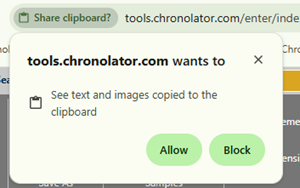
Understanding Clipboard PermissionsTo protect your privacy, modern web browsers require your explicit permission before a website can interact with your system clipboard. This prevents malicious sites from reading sensitive information you might have copied from elsewhere. Usually the browser will ask you to confirm with a message like this one from Chrome (Edge is very similar):
Press Allow. |
|
|
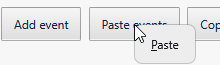
Firefox puts a discreet little Paste button next to the Chronolator one:
Press it. |
|
|
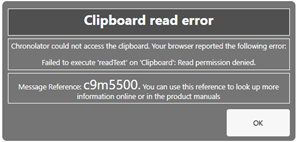
If you have previously blocked access, Chronolator Enter will show this:
Use a search like how do I unblock clipboard access to find out what to do. |
|
Copyright © Berrick Computing Ltd 2026