
Sample Covering email for users |
|


.png) This is some sample text you might want to copy to a covering letter or email to users. If you want to preserve the links and formatting in it, use the Keep Source Formatting or similar option when you paste it into another program like Word or Outlook (for more information, see this Microsoft article).
This is some sample text you might want to copy to a covering letter or email to users. If you want to preserve the links and formatting in it, use the Keep Source Formatting or similar option when you paste it into another program like Word or Outlook (for more information, see this Microsoft article).
If you have trouble copying and pasting from this Web page, you can download a Word version of it: click here and then save the document when prompted.
Please find attached the Case Review document as discussed at the recent panel meeting.
It is a special text document which has been produced using Chronolator Define, one of the Chronolator Browser Tools.
The first thing you should do is to save the document in a suitable place on your computer or network.
Do not try to directly open the attachment - it will not work.
When you have saved the file, you can start to update it using the Chronolator Enter tool at tools.chronolator.com/enter.
 Only Chronolator can understand the file – do not try to open it with any other program such as Notepad or Adobe Acrobat.
The tool looks and behaves much like Microsoft Word, having a "Ribbon" where you enter commands above the table where you enter events:
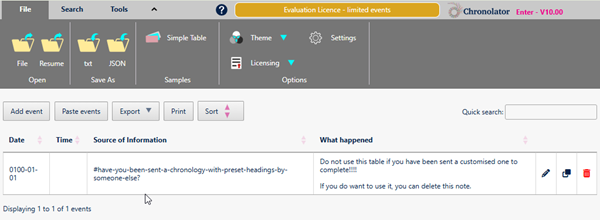
Entering events
 You can enter events as the records come to hand without having to put them in date order. Use the Sort button above the table to put them in date order.
.png) If you want events to be sorted as you enter them, set the relevant option by using the Settings button on the Ribbon.
If you want events to be sorted as you enter them, set the relevant option by using the Settings button on the Ribbon.
You can enter dates and times as they appear on the original records, and use the Format Dates button on the Tools tab of the Ribbon to put them into a consistent format.
There is some Help about updating the chronology at tools.chronolator.com/enter/help/updatingthechronology.htm, and a short video about it at www.chronolator.com/berrick/videos/chronolator-editor/index.htm.
Error checking
Chronolator will check that any event you enter has all the required information. It will not allow you to save it if it does not.
If you want to check that events are in chronological order, use the Check Table button on the Tools tab of the Ribbon.
Saving your work
Automatic save in browser
Chronolator Enter automatically saves your work in the Browser. You can pick up your work where you left off by pressing the Resume button on the File tab of the Ribbon.
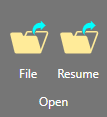
 Although Browser storage is quite robust and roomy, you should save your work on your computer from time to time to protect yourself against a system failure.
Saving on your computer
Use one of the buttons in the Save As group on the File tab of the Ribbon to save the chronology on your computer or network.
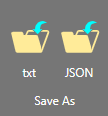
Depending on your browser settings, your chronology might be saved in your Downloads folder, with a name such as chronology.txt or chronology (1).txt. The following message will be displayed to that effect. 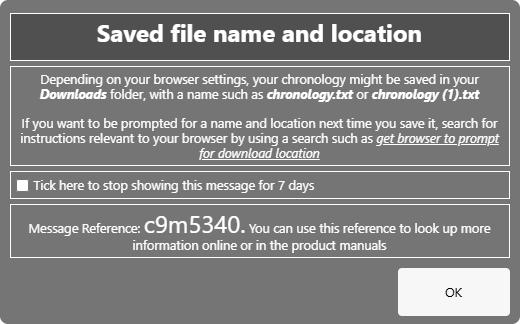
Press OK to continue to save.
If you want to be prompted for a name and location next time you save it, search for instructions relevant to your browser by using a search such as get browser to prompt for download location
Returning the document
When you have finished, please save the file using one of the buttons in the Save As group on the File tab of the Ribbon and return it to Marion West@berrick-SCP.gov.uk, who will also be able to advise you about using the tool.
Need information from other departments?
If you need data from other organisations or departments, you can forward the file to them, along with these instructions.
Ask them to complete it as above and return it to you.
When you get the completed documents back, use the Chronolator Integrate tool at tools.chronolator.com/integrate to merge them into a single document to be returned to me. Contact me if you need help with this.
Want to save a copy of the table?
If you want to keep a copy of the table that you can open without using the tool, use one of the buttons above the table:
the Print button produces a version in a new browser tab. Use your browser's standard Print facility to print or save it as a PDF.
the Export button has options to copy the chronology to your Clipboard and to save it as a docx file that can be used by Microsoft Word and other word processors.
Need further help?
The .png) button on the Ribbon has links to the vendor's Help about Chronolator Enter, or you can access it directly at tools.chronolator.com/enter/help.
button on the Ribbon has links to the vendor's Help about Chronolator Enter, or you can access it directly at tools.chronolator.com/enter/help.
The Help has information about other features provided by the tool, such as searching the chronology.
Copyright © Berrick Computing Ltd 2026