
Working with events |
|


In this topic
Adding an event
Editing an event
Duplicating an event
Deleting an event
Pasting events from another program
Using the Context (right-click) Menu
When adding or editing an event, Chronolator checks that it meets any requirements specified for the chronology.
If a new event is valid it will be added at the end of the chronology (unless you have set the Automatically Sort option on the File > Options > Settings form).
.png) Automatically Sort is on by default in all tools except Chronolator Enter.
Automatically Sort is on by default in all tools except Chronolator Enter.
If there are errors such as missing or invalid data, they are shown in red and you will not be able to save the event. Either correct them, or click somewhere outside the table to close it without making any changes.
|
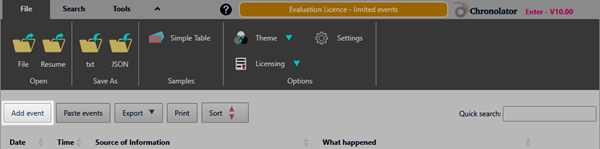
Press the Add event button above the table. |
|
|
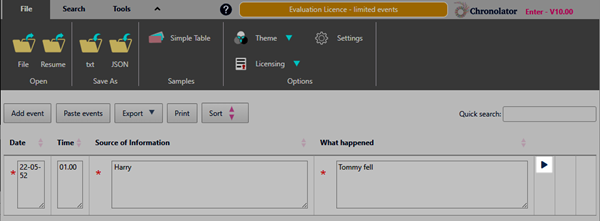
Enter the event details and press the |
|
|
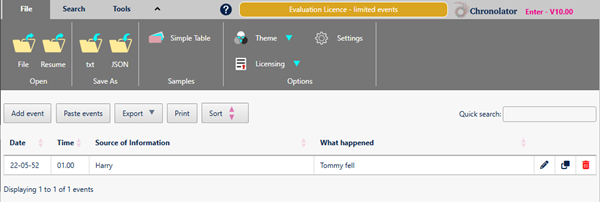
The event is added to the table. |
|

|
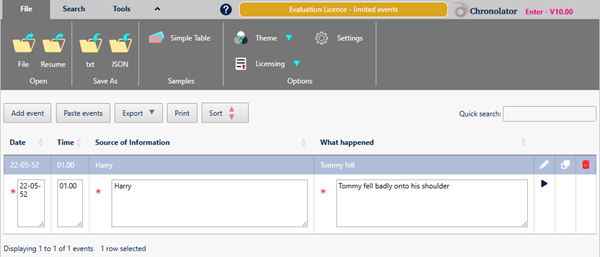
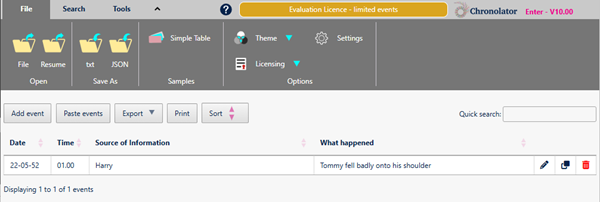
Press the |
|
|
Enter the event details and press the |
|
|
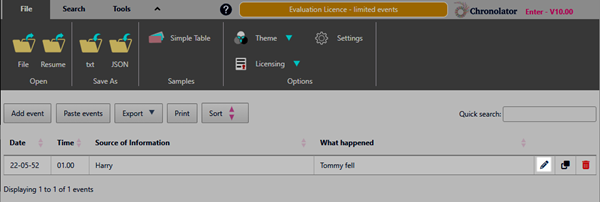
The updated event is saved. |
|

|
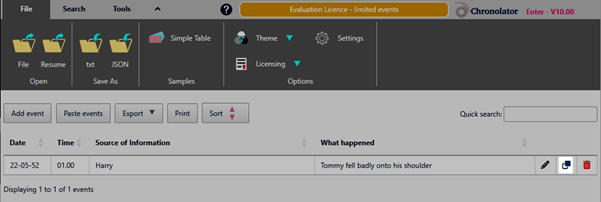
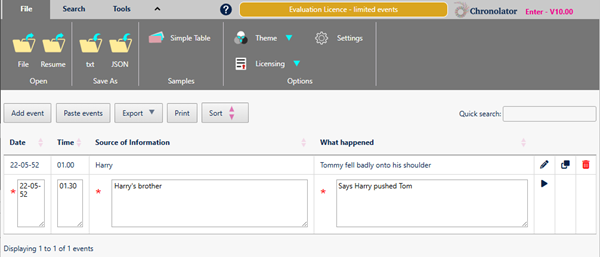
If you want to add an event that is similar to an existing one, press the |
|
|
Enter the new event details and press the |
|
|
The event is added to the table. |
|

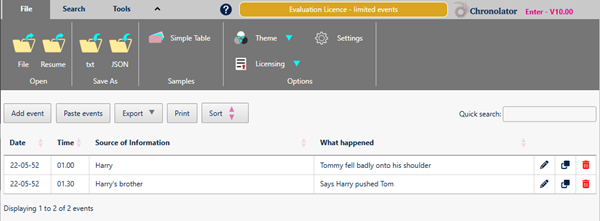
|
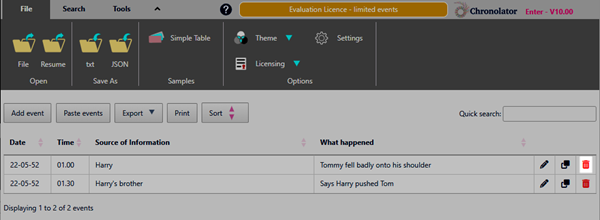
Press the |
|
|
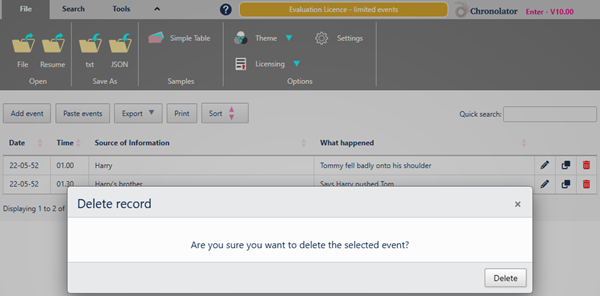
Press the Delete button in the confirmation message. |
|
|
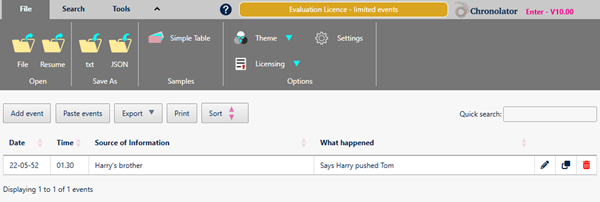
The event is deleted from the table. |
|

Pasting events in bulk from another program
|
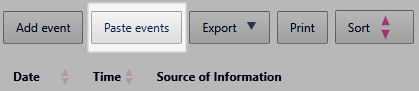
Use the Paste events button above the table. For more details, see Pasting multiple events. |
|
Using the Context (right-click) Menu
You can also Add, Change, Duplicate or Delete events by right-clicking on one and choosing the action on this Context Menu: 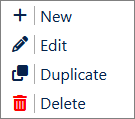
Copyright © Berrick Computing Ltd 2026